Best AI Video Editing Tools for Creators: Top Tools
Published: 17 Mar 2026
As a creator, picking the right video editing tool can make your content faster, cleaner, and more professional. The best AI video editing tools for creators help you save time, add effects, and improve the quality of your videos.
In this guide, I will share the top tools, explain what each does, and help you choose the one that fits your style. Whether you make YouTube videos, short social clips, or cinematic projects, this guide will make your editing easier and more creative.
Top 10 Video Editing Tools for Creators
Here are the top tools that every creator should know:
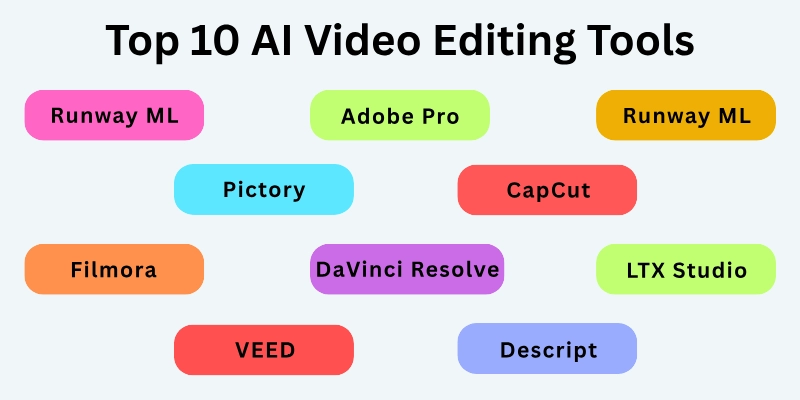
- Runway ML
- Adobe Premiere Pro
- Pictory
- CapCut
- Wondershare Filmora
- DaVinci Resolve
- Wisecut
- VEED
- Descript
- LTX Studio
Let’s explore each tool in detail.
1. Runway ML
Runway ML is perfect for creators who want to experiment with video effects and visuals. It can remove backgrounds, track motion, and even generate new visuals from text ideas. The tool works in your browser, so you don’t need a high-end computer to get started.
Runway ML is great for making short creative videos or adding cinematic effects to your projects. It has a free tier with limited credits and paid plans for more advanced use.
- Pros: Very creative, browser-based, easy to try.
- Cons: Free credits are limited, credit system can be confusing.
2. Adobe Premiere Pro
Adobe Premiere Pro is a professional editor used by many top creators. You can control timelines, add effects, adjust color, and edit audio with precision. It also includes smart features that help speed up repetitive tasks and improve workflow.
Premiere Pro works best for serious projects like YouTube videos, short films, or online courses. This is a paid subscription tool, but it offers full creative control.
- Pros: Industry standard, flexible, powerful editing features.
- Cons: Expensive and has a learning curve.
3. Pictory
Pictory helps creators turn scripts, blog posts, or long videos into engaging clips. It automatically selects visuals, adds captions, and even creates voiceovers for your content. This makes it very fast for repurposing content for social media or websites.
Pictory is beginner-friendly and allows creators to produce polished videos without heavy editing skills. Paid plans are available for full access, but it is worth the time saved.
- Pros: Fast and beginner-friendly, great for repurposing content.
- Cons: Limited control over advanced effects.
4. CapCut
CapCut is a simple tool for mobile and desktop editing, perfect for short-form content. It offers auto captions, trendy templates, and easy trimming.
You can quickly create TikTok videos, Instagram Reels, or YouTube Shorts with it. CapCut has a free version, and a Pro plan unlocks more effects and features. It is very easy to use, even for beginners.
- Pros: Cross-platform, trendy templates, mobile-friendly.
- Cons: Some advanced effects need paid plan.
5. Wondershare Filmora
Filmora is a tool for creators who want both simplicity and power. It supports smart cutting, voice cloning, and creative effects.
The interface is easy to use, so even beginners can make professional-looking videos. Filmora is suitable for vlogs, tutorials, and small business videos. It is a paid software, but it gives a lot of value for its price.
- Pros: Easy interface, many creative tools, beginner-friendly.
- Cons: Paid license required, limited flexibility for professionals.
6. DaVinci Resolve
DaVinci Resolve combines editing, color grading, and effects in one tool. It allows creators to make professional-quality videos with precise control. It also includes smart features like auto color matching and subtitles.
You can use the free version, which has most features, or the Studio version for advanced tools. This is best for YouTubers, filmmakers, or creators who need high-quality output.
- Pros: Professional features, strong free version, flexible workflows.
- Cons: Steep learning curve, needs a strong computer.
7. Wisecut
Wisecut is made for creators who record talking-head videos. It removes silences, adds background music, and automatically generates subtitles.
This saves hours of editing for tutorials, vlogs, and online courses. It has a free plan and a paid plan for unlimited editing. Wisecut is very beginner-friendly and speeds up post-production for video creators.
- Pros: Fast editing, subtitle generation, saves time.
- Cons: Not suitable for cinematic or complex effects.
8. VEED
VEED is a browser-based editor with collaboration features. You can add subtitles, text, and effects while working with your team online.
No installation is required, and it works on any computer with a browser. VEED has a free plan, and paid plans unlock more features and exports. It is great for creators who need online editing and team collaboration.
- Pros: Web-based, collaboration-friendly, easy to use.
- Cons: Free exports limited, heavy editing may be slower in browser.
9. Descript
Descript lets you edit videos by editing the transcript. You can cut, move, or delete words, and the video updates automatically. It also removes pauses, adds voiceovers, and helps creators with podcasts or interviews.
Descript has free and paid plans depending on features. This tool is ideal for creators who produce talking-head content.
- Pros: Transcript-based editing, voice cloning, beginner-friendly.
- Cons: Not ideal for cinematic visuals or heavy effects.
10. LTX Studio
LTX Studio allows creators to turn scripts into storyboards or video scenes. You can control camera angles, scene composition, and visual direction.
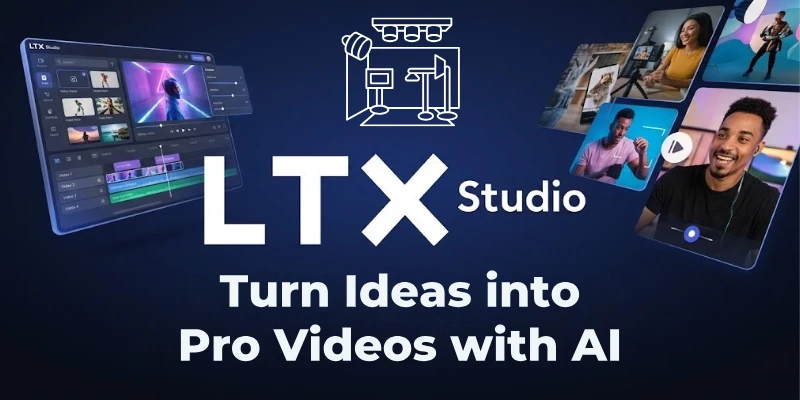
It is great for cinematic projects, concept videos, and visual storytelling. This is a newer tool with advanced creative features. Paid plans offer full functionality.
- Pros: Script-to-video, creative control, storyboard support.
- Cons: Learning curve; still evolving.
Comparison Table: All Best AI Video Editing Tools for Creators
Here is a quick overview of all the best video editing tools for creators, so you can compare features at a glance:
| Tool | Free / Paid | Best Use Case | Key Features |
| Runway ML | Free + Paid | Experimental / Creative visual effects | Background removal, motion tracking, text-to-video |
| Adobe Premiere Pro | Paid | Professional / YouTube / Films | Full timeline control, color grading, effects |
| Pictory | Paid | Repurposing content | Script to video, captions, voiceover |
| CapCut | Free + Paid | Social media short videos | Auto captions, templates, trimming |
| Wondershare Filmora | Paid | Beginner to intermediate creators | Smart cutting, voice cloning, effects |
| DaVinci Resolve | Free + Paid | Professional cinematic editing | Color grading, audio, subtitles, advanced effects |
| Wisecut | Free + Paid | Talking-head / tutorial videos | Silence removal, auto subtitles, background music |
| VEED | Free + Paid | Team / online collaboration | Browser editing, captions, text effects |
| Descript | Free + Paid | Podcast / interviews / talking videos | Transcript-based editing, voice cloning, smart pauses removal |
| LTX Studio | Paid | Storyboard / cinematic / concept videos | Script to scene, camera framing, storyboarding |
Factors to Consider When Choosing a Tool
Choosing the right video editor depends on your workflow and goals. Here are the main things to think about:
- Ease of Use: How easy is the tool for beginners?
- Features Needed: Do you need color grading, voiceover, auto captions, or templates?
- Budget: Free version, subscription, or one-time payment?
- Device Compatibility: Can you edit on mobile, desktop, or browser?
- Project Type: Short clips, long-form YouTube videos, or cinematic projects?
- Collaboration: Do you work alone or with a team?
- Export Options: Does it support high-quality exports and social formats?
My Recommendations
Based on different creator types, here is my personal advice:
- YouTube / Long-form Videos: Adobe Premiere Pro, DaVinci Resolve
- Social Media Short Clips: CapCut, Pictory
- Talking-head Videos / Tutorials: Descript, Wisecut
- Creative / Cinematic Projects: Runway ML, LTX Studio
- Team Collaboration / Online Projects: VEED
Final Note
In this guide, we have covered the best AI video editing tools for creators that suit beginners, social media creators, YouTubers, and filmmakers.
Each tool has its own strength, so you can pick one for everyday editing and another for creative experiments. Most offer free trials or free tiers, so you can try them without risk. Using the right tool will help you save time, improve quality, and focus more on your creativity.
FAQs: Best Video Editing Tools for Creators
Here are some of the most commonly asked questions related to the best AI tools for video editing:
If you want a powerful tool without paying, DaVinci Resolve is one of the most recommended free video editing softwares. It includes professional color grading, effects, and audio tools in its free version. Many creators choose it because it combines high quality with no cost for basic use.
Wondershare Filmora is very beginner‑friendly and offers a clean layout, drag‑and‑drop editing, and many built-in effects. New creators find it easy to make polished videos without deep technical knowledge. It works well for vloggers, social media creators, and educators.
Yes, CapCut is a mobile and desktop editor that many creators use for TikTok or Instagram Reels. It offers trendy templates, auto captions, and intuitive trimming tools. You can start with its free version and upgrade for more advanced effects.
Many YouTube creators prefer Adobe Premiere Pro and DaVinci Resolve, because they give full timeline control, advanced color tools, and high-quality exports. These editors support long-form content, transitions, and detailed audio work. These tools help you deliver professional‑grade YouTube videos.
Yes — Pictory allows creators to turn written content such as blog posts or scripts into video. It picks suitable visuals, adds captions automatically, and generates voiceovers. This makes it easy to repurpose existing content into polished video without manual editing.
For talking-head videos or tutorials, Descript and Wisecut are very helpful. Descript lets you edit by changing the text transcript, while Wisecut removes long silences and adds subtitles. These tools save you a lot of time during post-production and make your content smoother.
Yes — VEED is a browser-based video editor that creators like because they can edit, add text or subtitles, and collaborate without installing software. It is great for remote teams, educators, or creators who travel. VEED offers a free plan, and paid plans unlock more export options.
If you want to experiment with visual effects and creative scenes, Runway ML is a strong choice. It supports background removal, motion tracking, and generative visuals. This tool helps creators push creative boundaries and build visually rich content.
DaVinci Resolve is known for its exceptional color grading capabilities. It gives creators deep control over color, supports LUTs, and has tools for professional color correction. Many creators choose it for cinematic-quality visuals and precise color work.
Yes, LTX Studio is designed for creators who write scripts and want to turn them into visual scenes. You can control camera angle, scene composition, and framing — it works like a digital storyboard. This makes it perfect for narrative creators and filmmakers planning their next concept video.



- Be Respectful
- Stay Relevant
- Stay Positive
- True Feedback
- Encourage Discussion
- Avoid Spamming
- No Fake News
- Don't Copy-Paste
- No Personal Attacks
- Be Respectful
- Stay Relevant
- Stay Positive
- True Feedback
- Encourage Discussion
- Avoid Spamming
- No Fake News
- Don't Copy-Paste
- No Personal Attacks
