How to Turn Off Notion AI: A Simple Guide to Taking Control
Published: 14 Sep 2026
Wondering how to turn off Notion AI because you no longer want AI tools in your workspace? Notion AI can be useful for writing, summaries, and other tasks, but you may prefer to work without it.
The confusing part is that “turning off” Notion AI can mean different things. You might want to disable a specific feature, hide AI options, remove AI access from a workspace, or cancel your paid plan.
These actions are not the same. For example, changing an AI feature will not automatically cancel your subscription. Likewise, removing AI access from a workspace is different from changing what you see while writing.
This guide explains how to disable Notion AI, how to hide Notion AI, and how to remove Notion AI based on what you actually want to change.
What Is Notion AI?
Notion AI is an AI assistant built into Notion. It can help you create and improve content, summarize information, organize ideas, and work with information in your workspace.
You can use Notion AI to:
- Write drafts, notes, and other content.
- Summarize long pages or notes.
- Improve grammar and sentence clarity.
- Answer questions about your content.
- Turn rough ideas into a clearer structure.
For example, after a meeting, you can use AI to turn long notes into a short list of important points and action items.
If you no longer need these tools, you may start looking for how to deactivate Notion AI or how to stop it from appearing in your normal workflow.
Before You Disable Notion AI
Before making changes, decide exactly what you want to stop. This will help you avoid changing the wrong setting.
You may want to:
- Disable a specific AI feature.
- Stop Notion AI from appearing while you write.
- Remove AI access from a shared workspace.
- Cancel a paid Notion AI plan.
- Completely stop using AI features in your daily workflow.
Your workspace role can also affect which settings you can change. If you manage a shared workspace, check your available permissions before making changes.
It is also useful to check your current plan. This can help you understand whether your AI access is connected to your workspace plan or a separate paid option.
Simple tip: Decide whether you want to disable, hide, remove, or cancel Notion AI before changing any settings.
Can You Completely Turn Off Notion AI?
There may not be one universal switch that removes every AI-related option from Notion. The result depends on what you are trying to change and which controls are available in your workspace.
Here is the difference:
- Disable Notion AI: Turn off an available AI feature.
- Deactivate Notion AI: Stop using or restrict an AI function.
- Remove Notion AI: Remove or restrict AI access where the relevant setting allows it.
- Hide Notion AI: Reduce or stop an AI option from appearing in your workflow.
- Cancel Notion AI: End the paid service or subscription.
For example, Notion AI disable settings may affect a particular feature rather than every AI function. Hiding an option also does not necessarily end a paid plan.
Understanding this difference makes it easier to choose the right method.
How to Turn Off Notion AI: Step-by-Step Methods
The best method depends on what you want to change. Use the section below that matches your situation. Each method focuses on a different type of change, so choose the one that fits your needs.
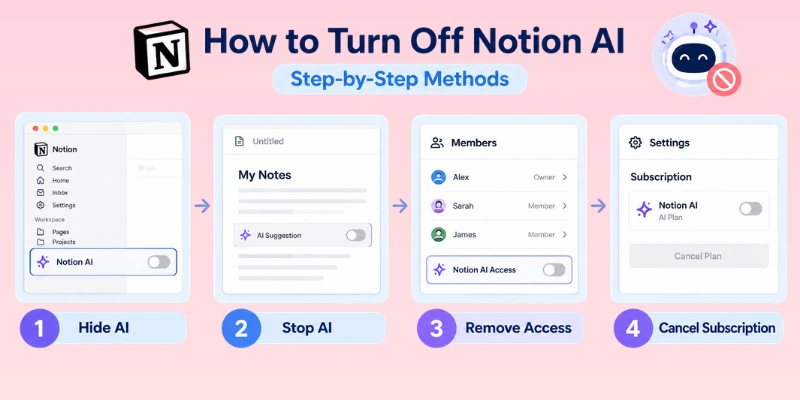
This will help you get the desired result without making unnecessary changes.
1. How to Disable Notion AI Features
If you only want to stop certain AI functions, you do not necessarily need to change your entire plan.
To disable Notion AI features, start by checking your available workspace settings.
Follow these steps:
- Open the Notion workspace you want to manage.
- Go to Settings.
- Look for the available Notion AI settings.
- Review the AI controls shown for your workspace.
- Turn off or restrict the feature you no longer want to use.
- Confirm the change if Notion asks you to do so.
- Open a page and test the feature.
This approach is useful when you want to turn off Notion AI features but still want to keep other parts of your Notion setup unchanged.
When should you use this method?
Use it when you want to disable Notion AI selectively instead of removing or cancelling everything connected to AI.
2. How to Hide Notion AI and Stop It From Appearing
Sometimes the problem is not the subscription. You simply do not want AI options showing up while you work.
If you are searching for how to hide Notion AI or how to stop Notion AI from appearing, first identify which AI option you keep seeing.
Then:
- Open the relevant Notion workspace or page.
- Go to the available settings.
- Check the Notion AI or related feature controls.
- Look for an option that lets you disable, restrict, or hide the feature.
- Apply the available setting.
- Return to your page and check whether the AI option still appears.
The exact controls can vary depending on your workspace and the Notion features available to you.
This method is mainly about your day-to-day Notion experience. It does not automatically mean that your paid AI access has been cancelled.
Important: If your main goal is to stop being charged, check your billing settings separately.
3. How to Remove Notion AI From a Workspace
A shared workspace is different from your personal writing experience. If you manage a team workspace, you may want to restrict AI access for members.
If you are looking for how to remove Notion AI from workspace, check your workspace-level permissions and AI controls.
Follow these steps:
- Open the correct Notion workspace.
- Go to Settings.
- Open the available workspace or Notion AI settings.
- Review the AI access options.
- Check which members or groups can use the relevant features.
- Restrict access where the available settings allow it.
- Review the changes before leaving the settings page.
This method is best when your goal is to manage AI use across a workspace rather than simply hiding it from your own screen.
Keep in mind that workspace permissions can affect other members. Review the available controls carefully before making changes.
4. How to Turn Off Notion AI Subscription
If you want to stop paying for Notion AI, disabling a feature is not enough. You need to manage your plan or billing settings.
If you are searching for how to turn off Notion AI subscription or how to cancel Notion AI, follow these general steps:
- Open Notion on a desktop or web browser.
- Select the workspace connected to your plan.
- Open Settings.
- Go to Billing or the available plan-management area.
- Review your current plan and AI access.
- Choose the available downgrade or cancellation option.
- Confirm the change.
- Check your billing information to make sure the change was applied.
If you purchased the subscription through an app store, the cancellation process may be handled through that store instead.
Also, cancelling a subscription does not necessarily mean that access ends immediately. Check the plan information shown after cancellation to understand when the change takes effect.
Simple tip: If your goal is to stop payment, always verify your plan after making the change.
What Happens After You Turn Off Notion AI?
After you deactivate Notion AI, the result depends on the type of change you made.
If you disabled one feature, other AI options may still be available. If you restricted workspace access, affected members may no longer have access to the selected feature. If you cancelled a paid plan, billing and access can change according to the plan terms.
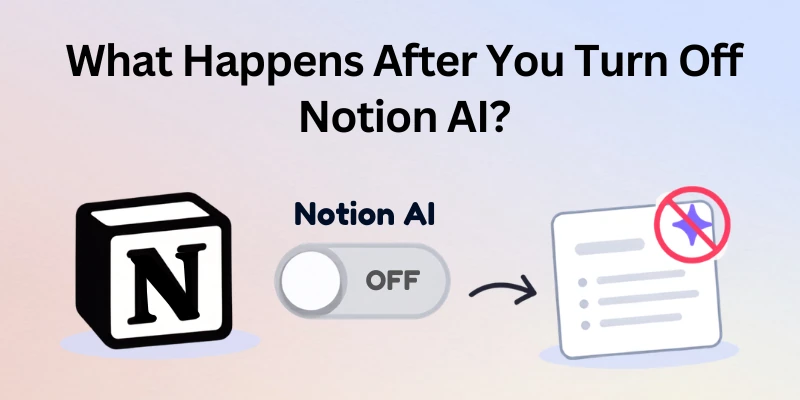
Your normal Notion pages are separate from the AI controls. Turning off AI does not mean you should expect your regular workspace content to disappear.
Quick checklist
After making a change:
- Open a Notion page and test the affected feature.
- Return to Settings and confirm the change.
- Check workspace access if you changed member permissions.
- Review your plan if you cancelled a subscription.
- Make sure important content is still available.
Testing the result is a simple way to confirm that you changed the setting you intended to change.
Common Myths About Turning Off Notion AI
There are several misconceptions about Notion AI removal. Understanding them can prevent unnecessary changes.
Myth 1: Disabling One AI Feature Removes Everything
Not necessarily. A setting may only control one feature. Other AI functions can remain available.
Myth 2: Cancelling the Plan Immediately Removes Every AI Option
Not always. Subscription changes and feature visibility are separate matters. Check your settings and plan status after making the change.
Myth 3: Every Workspace Member Can Change AI Settings
Workspace permissions can determine who has access to certain settings. Members may not see the same controls as workspace administrators or owners.
Myth 4: Removing Notion AI Deletes Your Notion Pages
No. Your normal workspace content is separate from AI access. Changing AI settings does not mean that your regular pages should be removed.
Myth 5: “Turn Off” Always Means the Same Thing
This is one of the biggest sources of confusion. Notion AI turn off, hiding a feature, restricting workspace access, and cancelling a paid plan are different actions.
Final Thoughts
Turning off Notion AI can feel confusing because there is no single action for every situation. You may want to hide an AI feature, limit access in a workspace, stop AI options from appearing, or cancel a paid subscription. Each goal needs a different approach.
My recommendation is to first decide exactly what you want to change. If you only want fewer AI features in your workspace, adjust the relevant settings. If you want to stop paying, check your subscription and billing details separately. Taking this simple approach can help you avoid changing the wrong option.
In the end, how to turn off Notion AI is really about choosing the method that matches your needs. Follow the right steps, check the result afterward, and keep only the features that genuinely help your workflow.
Frequently Asked Questions
Still unsure which Notion AI setting you need to change? These questions cover the most common situations, from hiding AI features to managing workspace access and stopping paid AI services.
Notion AI does not have to be treated as one single switch. The setting you need depends on what you want to stop. You may want to limit AI features, control who can use them, or end a paid AI plan.
Before changing anything, check your workspace settings and identify the specific AI option you want to manage. This helps you avoid changing other Notion features by mistake.
If your goal is to remove Notion AI from workspace, start by checking the AI settings available to your account. The exact controls can depend on your workspace permissions.
- Open Settings
- Go to the Notion AI section
- Review the available workspace controls
- Change the option that matches your goal
- Check the workspace again after saving the change
No, cancelling an AI plan does not mean you have to remove your normal Notion content. Your pages, notes, databases, and documents are part of your workspace rather than being the same thing as the AI subscription.
So, if you cancel paid AI access, your existing workspace content should remain available. However, always check your current plan details before making billing changes.
You can separate feature control from subscription cancellation. If you still want to keep your paid plan but do not want to use a certain AI feature, check the available workspace settings first.
This can be useful when you want more control over how AI is used without ending your entire plan. Look for the specific feature or access setting instead of changing your billing plan.
Sometimes turning off one option does not remove every AI-related feature. Notion may have different controls for workspace access, individual features, or subscription settings.
Try checking these areas:
- Your Notion AI settings
- Workspace permissions
- Account or plan settings
- Any remaining AI features
This can help you find the setting that is still allowing the feature to appear
Not necessarily. The ability to manage AI settings can depend on the person’s role and permissions within the workspace.
For example, a regular member may be able to use certain features but may not have permission to change workspace-wide controls. If you cannot find the setting, ask the workspace owner or an administrator to check it.
No. These are two different things. Hiding or limiting an AI feature changes how the feature is used, while cancelling a subscription affects your billing plan.
If your main goal is to stop future charges, go to your billing or plan settings and review the active subscription. Do not assume that hiding an AI option automatically cancels payment.
The easiest way is to test the setting after you make the change. Open a page where you normally use Notion AI and check whether the feature still behaves the same way.
You can also return to your workspace settings and confirm that the option shows your new preference. If you were trying to stop payment, check the billing or plan section as well.
In many cases, you can change your settings again if the relevant AI feature or plan is still available to your account. Turning a feature off does not automatically mean you can never use it again.
If you change your mind, return to the relevant Notion AI or workspace settings and review the options available there. Your available choices may depend on your current plan and workspace permissions.
The easiest approach is to first decide what you actually want to stop. You may only want to hide an AI feature, limit workspace access, or cancel a paid plan.
Once you know your goal, change only the related setting. This keeps the process simple and reduces the chance of changing something you still want to use.




- Be Respectful
- Stay Relevant
- Stay Positive
- True Feedback
- Encourage Discussion
- Avoid Spamming
- No Fake News
- Don't Copy-Paste
- No Personal Attacks
- Be Respectful
- Stay Relevant
- Stay Positive
- True Feedback
- Encourage Discussion
- Avoid Spamming
- No Fake News
- Don't Copy-Paste
- No Personal Attacks
