Top AI Productivity Tools for Office Work: Work Smarter
Published: 19 Mar 2026
Work in an office often means juggling tasks, emails, meetings, and documents. The top AI productivity tools for office work can help you automate repetitive tasks, focus on important work, and save time.
Based on my own experience testing several tools, I’ll show you the ones that really make a difference in day-to-day office productivity. By the end of this guide, you’ll know which tools can transform your workflow and help you work smarter.
Key Productivity AI Tools for Office Work
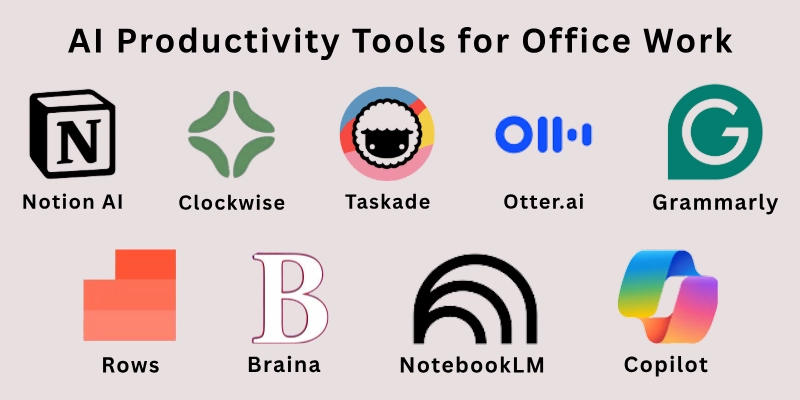
Here are some of the best AI tools I use or strongly recommend for office productivity:
- Microsoft 365 Copilot / Office Agent
- Notion AI
- Clockwise
- Taskade
- Otter.ai
- Grammarly / GrammarlyGO
- Rows
- Braina
- Adobe Acrobat Studio
- NotebookLM
Let us learn about each in detail.
1. Microsoft 365 Copilot / Office Agent
Microsoft’s Copilot is now deeply integrated into Word, Excel, Outlook, and Teams, and with the new Office Agent and “Agent Mode,” it helps you draft documents, analyze data, and automate office tasks.
I’ve used it to generate reports and refine spreadsheets just by typing a simple prompt. It also helps with meeting summaries and action items so you don’t miss anything important. With Office Agent, you can talk to it in natural language and let it take over repetitive workflow tasks.
- Pros: Saves time, very well integrated with Microsoft apps, powerful content generation
- Cons: Requires a Microsoft 365 subscription, may take time to learn all its features
2. Notion AI
Notion AI brings smart writing, brainstorming, and task automation to Notion’s all-in-one workspace.
I use Notion AI to turn my meeting notes into to-do lists or generate first drafts of documents. It helps me summarize long notes, track projects, and keep everything organized in one place. Because it lives inside Notion, I don’t have to switch tools, everything flows naturally.
- Pros: Integrates seamlessly with your notes and tasks, very flexible, great for writing and planning
- Cons: AI add-ons cost extra, and it may not replace a full word processor for very long documents
3. Clockwise
Clockwise is a smart calendar assistant that optimizes your schedule by moving meetings to make space for focused work.
I have used it to protect “deep work” blocks by letting the tool automatically reschedule low-priority meetings. It connects to Google Calendar (and other calendars) and learns your work habits. Over time, it helps you find more uninterrupted focus hours each week.
- Pros: Helps you reclaim focus time, automates calendar optimization, integrates with major calendar tools
- Cons: Advanced features may need paid plan, initial setup takes time to tune
4. Taskade
Taskade is a task tracker, note-taker, and collaborative workspace in one. I use it to break big projects into smaller tasks, and it even suggests “next steps” when I feel stuck.
If you type something like “Plan my week” or “Build a report,” Taskade helps you map out tasks, deadlines, and a calendar automatically. It also supports real-time collaboration with colleagues.
- Pros: Very flexible, great for both planning and execution, supports teamwork
- Cons: Free plan is limited; very complex project plans may require other tools
5. Otter.ai
Otter.ai transcribes meetings, interviews, and calls in real time. I often join long video calls and let Otter.ai do the note-taking, it picks out key points, action items, and things to follow up on.
After the meeting, I can search through the transcript by keyword, so I don’t need to remember every detail. It syncs with Zoom and other meeting tools, making it a real time-saver.
- Pros: Accurate transcriptions, automatic summarization, very handy for meeting records
- Cons: Free plan may have limits on minutes, sometimes needs editing for perfect accuracy
6. Grammarly / GrammarlyGO
Grammarly helps you write better in emails, documents, and chats. I use Grammarly to check my tone, grammar, and clarity, and GrammarlyGO takes it a step further by helping me draft full emails or messages.
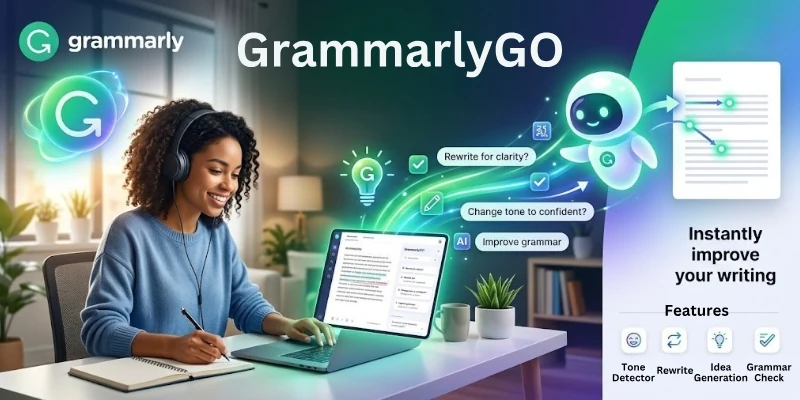
It works across many platforms, so you feel more confident writing anything. For office work, it improves communication and saves time on rewriting.
- Pros: Improves writing quality, supports tone and clarity, very easy to use
- Cons: Premium version needed for advanced features, AI writing suggestions may need review
7. Rows
Rows is a modern spreadsheet that feels like a smarter version of Excel or Airtable, with built-in natural-language functions. I use Rows when I need to analyze data quickly, because I can ask it questions like “Summarize this data” and it responds.
It supports real-time dashboards, API connections, and live data, which makes it very powerful for office reporting.
- Pros: Flexible data analysis, natural language querying, great for dashboards
- Cons: Learning curve if you’re used to traditional spreadsheets, advanced features cost more
8. Braina
Braina is a personal assistant app for Windows that listens to voice commands and helps you perform tasks like opening apps, dictating text, or automating repetitive work.
I use it when I want to dictate notes, write via voice, or control my system hands-free. It supports speech-to-text for many tasks and works locally, which is good for privacy.
- Pros: Voice-driven productivity, works offline, very flexible for Windows tasks
- Cons: Interface feels old-fashioned, not very modern design
9. Adobe Acrobat Studio
Adobe Acrobat Studio turns PDF work into a collaborative, intelligent workspace. I use it to combine documents, research files, and web pages into “PDF Spaces”, then I ask the built‑in assistant to highlight insights, generate summaries, or suggest visual content.
It makes handling many documents much smoother. The AI assistant in Acrobat Studio is surprisingly powerful for extracting ideas and creating new content.
- Pros: Great for document-heavy workflows, very powerful PDF + web integration, smart summarization
- Cons: Subscription cost, heavy use may require good internet connection
10. NotebookLM
NotebookLM is a note-taking and research assistant built by Google. I upload documents, reports, or research materials, and it helps me make sense of them by summarizing, answering questions, and pulling out key ideas.
It feels like having a smart research partner: instead of reading every document fully, I can ask it what matters. This saves huge time when I am preparing meetings or reports.
- Pros: Helps with deep research, simplifies complex documents, good for long study / work sessions
- Cons: Some features are limited on free tier, may oversimplify very technical content
Comparison Table: Top AI Productivity Tools for Office Work
Here is quick overview related to the all best AI productivity tools for office work:
| Tool | Free / Paid | Best Use Case | Key Strengths |
| Microsoft 365 Copilot / Office Agent | Paid (via Microsoft 365) | Document creation, data analysis, meetings | Deep Office integration, natural language workflow |
| Notion AI | Paid add-on | Note-taking, planning, task automation | Versatile workspace, writing + task generation |
| Clockwise | Free + Paid | Calendar management | Reschedules meetings, protects focus time |
| Taskade | Free + Paid | Task management & planning | Suggests task steps, supports collaboration |
| Otter.ai | Free + Paid | Meeting transcription | Transcribes audio, summarizes action items |
| Grammarly / GrammarlyGO | Free + Paid | Writing and communication | Grammar, clarity, tone, drafts |
| Rows | Free + Paid | Data analysis and dashboards | Query via text, live dashboards |
| Braina | Paid | Voice-driven tasks | Speech-to-text, local assistant functions |
| Adobe Acrobat Studio | Paid | Document consolidation & collaboration | Document summary, PDF workspace hub |
| NotebookLM | Free + Paid | Research & reading | Document synthesis, key idea extraction |
Factors to Consider When Choosing a Productivity Tool
Choosing the right productivity tool is not just about “what’s trendy.” Here are the things I think matter most for office work:
- Workflow Fit: Pick a tool that matches how you work — writing, planning, meeting, or reporting.
- Cost vs Benefit: Compare free vs paid; make sure the productivity gain is worth the price.
- Integration: Check if the tool works well with the apps you already use (calendar, email, docs).
- Learning Curve: Some tools are easy; others need time to master.
- Collaboration: Do you need tools that let your team work together seamlessly?
- Security & Privacy: Make sure the tool handles your data safely, especially for business documents.
My Recommendations
Based on how I’ve used these tools:
- Heavy Microsoft 365 users: Use Microsoft 365 Copilot / Office Agent — it fits right into Word, Excel, Teams.
- Project planners and knowledge workers: Use Notion AI and Taskade to organize tasks, notes, and documents.
- Meeting-heavy professionals: Use Otter.ai to record and summarize, and Clockwise to manage calendar.
- Smart writers and communicators: Use Grammarly / GrammarlyGO to polish communication.
- Data analysts or report makers: Use Rows for analyzing and building dashboards.
- Someone working with lots of documents: Use Adobe Acrobat Studio to merge, summarize, and explore PDFs.
- Researchers and deep thinkers: Use NotebookLM to distill key ideas from large documents.
Final Note
In this guide, we have explored the top AI productivity tools for office work that help you save time, reduce repetitive tasks, and work more efficiently. I have personally tested many of them, and each one has strengths for different types of office work.
Use this list to pick the tools that match how you work, try a few out, and you will feel more in control of your day. The right productivity tool can make “busy work” feel creative and smooth.
FAQs: Top AI Productivity Tools for Office Work
Here are some of the best artificial intelligence tools for office work:
Clockwise is one of the best tools for meeting scheduling. It automates rescheduling to protect your focus time and integrates with calendars like Google Calendar. It helps you minimize meeting overload and find time for focused work.
Yes, Grammarly (or the newer GrammarlyGO) helps you write clearer, more professional emails and documents. It checks grammar, tone, and clarity, so your communication looks polished. You can draft ideas or full emails much faster than before.
Use Otter.ai, it records your meeting, transcribes the conversation, and highlights key points and action items. After the meeting, you can search by keyword to find what was said. This saves hours on manual note‑taking.
Adobe Acrobat Studio helps you turn scattered PDFs into a collaborative workspace. You can combine documents, ask the assistant to pull insights, and generate summaries. It helps you work smarter when dealing with many files.
Yes. Taskade combines notes, to‑do lists, and planning. You can write down a vague idea and let it generate a task list and schedule for you. It is great for project planning with your team.
Rows is a spreadsheet tool that lets you ask questions in natural language and turn data into live dashboards. You don’t need to write formulas — just tell it what you want to see. It’s perfect for quick reports and insights.
Yes, Braina is a virtual assistant that responds to your voice. You can dictate notes, open apps, or automate simple tasks without typing. It’s very helpful when you want to stay hands-free and productive.
NotebookLM lets you upload documents (like reports or research papers) and then ask questions or get summaries. It helps you extract key insights quickly. This makes research much easier and more efficient.
Notion AI is very strong for brainstorming, planning, and capturing notes and tasks all in one. You can ask it to generate content, organize thoughts, or propose next steps for a project. It keeps your work in one organized space.
Microsoft 365 Copilot with Office Agent is like having a co-worker who helps you write, analyze, and manage tasks. I’ve used it to draft reports, build slides, and clean up spreadsheets just by telling it what I need. It is powerful for reducing mundane work.


- Be Respectful
- Stay Relevant
- Stay Positive
- True Feedback
- Encourage Discussion
- Avoid Spamming
- No Fake News
- Don't Copy-Paste
- No Personal Attacks
- Be Respectful
- Stay Relevant
- Stay Positive
- True Feedback
- Encourage Discussion
- Avoid Spamming
- No Fake News
- Don't Copy-Paste
- No Personal Attacks
