How to Use AI Tools to Create Logos: Step-by-Step Guide
Published: 4 Jun 2026
In the traditional way, creating a logo used to take a lot of money, time, and design skills. I remember spending hours trying to sketch ideas, test color schemes, and adjust fonts, only to feel unsure about the final design.
Artificial intelligence has changed this completely by helping businesses and freelancers make professional logos fast and easily.
In this guide, I will explain how to use AI tools to create logos step by step, share the best tools to use his year, and give you practical tips to design logos that look great and represent your brand well.
How to Use AI Tools to Create Logos
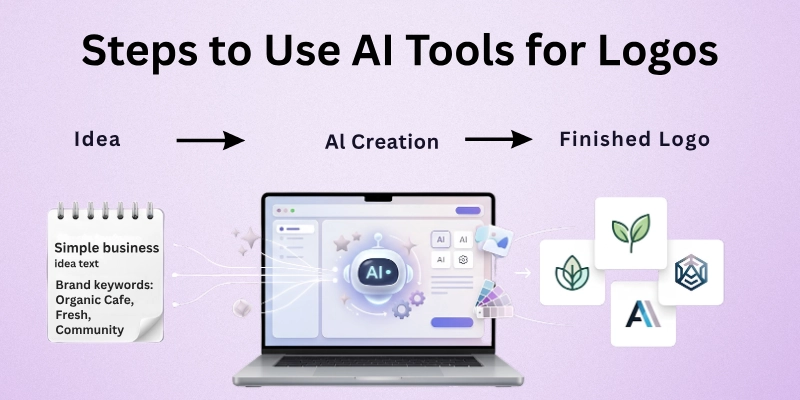
Below is the step-by-step process I follow when I create logos using AI tools:
- Define Your Brand Idea
- Choose the Right AI Logo Tool
- Enter Brand Details
- Select Style, Color, and Symbols
- Review AI‑Generated Logo Options
- Customize the Best Logo
- Download and Export Your Logo
- Test Your Logo in Real Use Cases
- Save and Organize Logo Files
- Get Feedback and Improve
Let us cover all steps in detail.
1. Define Your Brand Idea
Before using any AI tool, I always start by clarifying my brand idea. This means thinking about the brand name, target audience, values, and personality. For example, is the brand playful and bold, or professional and serious? Writing down a few words that describe the brand helps the AI generate better logo designs.
Key things to define:
- Brand name
- Tagline (if any)
- Brand personality (e.g., modern, classic, fun)
- Target audience
2. Choose the Right AI Logo Tool
It is important to select the appropriate AI logo maker, as there are many of them available. I look for tools that provide a wide variety of template options, a large number of customizable styles, and high-quality downloads. Here are the best AI tools I use in 2026:
- Looka: Easy AI logo maker with smart suggestions
- Tailor Brands: Brand identity plus logo design
- Canva AI Logo Maker: Simple and flexible design
- Hatchful by Shopify: Free and beginner friendly
- LogoAI: Focuses on modern minimal designs
Each tool has unique features, so I choose based on my project needs.
3. Enter Brand Details
After selecting the tool, I enter my brand name and tagline. This is where the AI starts understanding what the logo should represent. Some tools also let me choose the business category so the AI can suggest relevant icons and fonts.
Details to enter:
- Brand name
- Tagline (optional)
- Business category
- Keywords (optional for style references)
4. Select Style, Colors, and Symbols
This step is where I express my brand visuals. AI tools usually ask for preferred styles such as modern, classic, elegant, bold, playful, or minimalist. I also choose the color palette that best fits my brand identity. Colors communicate emotions; blue feels trustworthy, red feels bold, and green feels natural, so I choose colors that match my brand’s voice.
I also select symbols or icons I want in my logo, such as abstract shapes, initials, or industry‑related icons.
Style elements to choose:
- Logo style
- Color palette
- Fonts
- Icons or symbols
5. Review AI‑Generated Logo Options
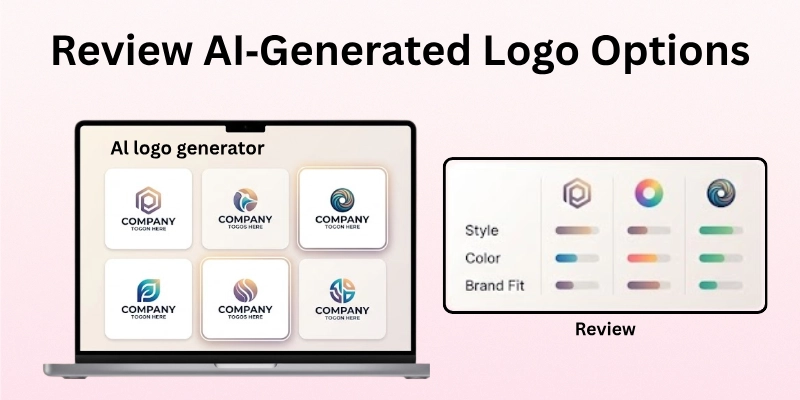
Once I input brand details and stylistic preferences, the AI generates many logo options in seconds. I review all variations and shortlist the ones that feel closest to my brand vision. Most AI tools allow me to sort by style, popularity, or color themes.
Tips when reviewing:
- Look at all angles
- Ignore only the logos that feel off‑brand
- Save multiple favorites for comparison
6. Customize the Best Logo
After selecting the best AI‑generated logo, I customize it further until it feels right. This includes adjusting colors, changing fonts, resizing icons, and repositioning elements. I make sure the logo is balanced and readable at different sizes.
AI logo tools make customization easy with drag‑and‑drop editors and real‑time previews.
7. Download and Export Your Logo
Once satisfied, I download the logo in multiple formats. Most tools offer high‑resolution PNG, SVG, PDF, and vector files. Vector files are especially important because they don’t lose quality when scaled for large banners or print.
Formats to download:
- PNG for web use
- SVG or EPS for scaling
- PDF for print
- Icon versions for social media
8. Test Your Logo in Real Use Cases
A logo should look good everywhere: on websites, business cards, social media, products, and packaging. I always test the logo in real use cases before finalizing it. This helps me ensure the logo works in small sizes, in black and white, and on different backgrounds.
Real use case tests:
- Website header
- Social profile icons
- Printed business cards
- Product mockups
9. Save and Organize Logo Files
I keep all logo files organized in folders with clear names like “Logo Primary,” “Logo Icon,” and “Logo Black & White.” I also save the brand color codes and font names. This makes it easy to use the logo in future designs or share with designers or partners.
Suggested organization:
- Primary logo folder
- Icon logo folder
- Color and font info
- Backup files
10. Get Feedback and Improve
Even after automation, feedback matters a lot. I share the logo with trusted peers, clients, or audience to get honest opinions. Sometimes small tweaks after feedback make a big difference. AI logos are a great start, but real human insight ensures the logo truly connects with people.
Feedback sources:
- Clients or collaborators
- Social media poll
- Trusted peers or design communities
Why Using AI Tools for Logo Creation Matters
Logo tools powered by artificial intelligence help save time, cut costs, and eliminate the need for advanced design skills. Simple logo design is no longer something I have to wait weeks for or pay expensive design agencies for. AI tools provide hundreds of different options in a matter of minutes and allow me to select the one that feels suitable.
Freelancers and owners of small businesses are given the ability to easily create a professional brand identity with their assistance.
Conclusion
In this guide, I explained how to use AI tools to create logos by sharing step‑by‑step workflow, tools, customization tips, and feedback ideas. My personal advice is to start with clear brand ideas, choose a tool that fits your style, and refine the AI suggestions with your own touch. AI makes logo creation faster and easier, but your creativity and brand vision make it meaningful.
Now, let us move on to the FAQs related to this topic.
FAQs
Here are some of the most commonly asked questions related to how to use AI tools to create logos:
No, AI logo tools are beginner‑friendly and require no design experience. I use them even without formal design training. AI suggests styles and options so you can pick what fits your brand.
Yes, many AI tools generate logos that look professional and custom‑made. I have used AI logos for clients and business cards. With customization, AI logos can be high quality.
Some tools offer free versions or low‑cost downloads. I often start with free options to preview ideas. Paid plans give high‑resolution files and more features.
Most AI logo tools allow commercial use, but check the licensing terms. I always download the license or terms. This ensures I use the logo in business without issues.
AI tools can generate logo options in seconds or minutes. I usually spend time reviewing and customizing, which may take up to an hour. This is much faster than manual design.
You are able to revisit and edit logos with the majority of tools. All of the versions are saved so that I can make any necessary changes to the design. In this way, your brand remains current.
AI logos are great for most small and new businesses. For complex branding, working with a designer might help. However, AI logos are cost‑effective and fast.
For those just starting out, the most user-friendly tools are Hatchful and Canva AI Logo Maker. Simple steps and unambiguous results are provided by them.



- Be Respectful
- Stay Relevant
- Stay Positive
- True Feedback
- Encourage Discussion
- Avoid Spamming
- No Fake News
- Don't Copy-Paste
- No Personal Attacks
- Be Respectful
- Stay Relevant
- Stay Positive
- True Feedback
- Encourage Discussion
- Avoid Spamming
- No Fake News
- Don't Copy-Paste
- No Personal Attacks
