How to Use AI for Graphic Design – Easy Guide
Published: 9 Apr 2026
Using AI for graphic design means using smart tools that help you create images, layouts, branding, and visual content faster and with better quality.
These tools understand your instructions, generate ideas, fix errors, and speed up your design process. If you are a beginner or a professional, learning how to use AI for graphic design can save you hours of work and improve your creativity.
Below is a complete and detailed guide that explains everything step by step.
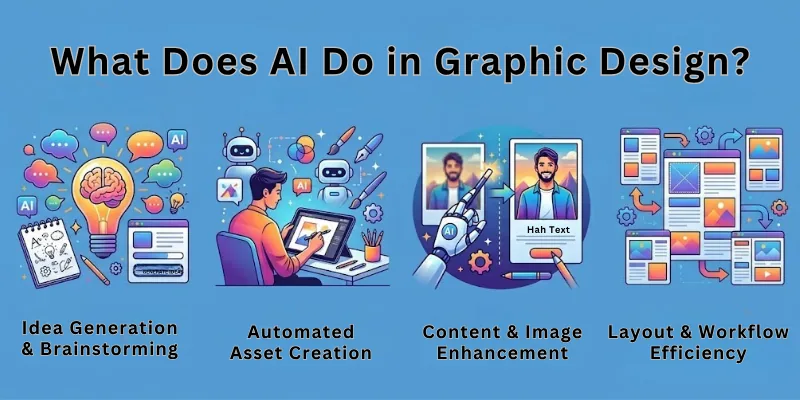
What Does AI Do in Graphic Design?
AI helps you create visual content by understanding your text inputs and turning them into designs. It assists with image creation, editing, branding, layout planning, and even style matching. These tools learn from millions of images, so they know how colors, shapes, and styles work together.
AI can help with:
- Creating new images from simple text prompts in one single step.
- Editing or enhancing photos automatically with smart adjustments.
- Designing logos, posters, banners, and templates in a few seconds.
- Improving colors, compositions, and layouts based on best design rules.
- Removing backgrounds, fixing imperfections, or upscaling images instantly.
By knowing how to use AI for graphic design, you can combine your creativity with the speed of technology.
How AI Tools Work in Graphic Design
AI uses machine learning to understand what you want and produce visual results.
How the process works:
- You give a text prompt, such as “minimal logo for a coffee brand,” and AI converts it into visuals.
- You upload an existing image, and AI improves or modifies it for better quality.
- You give style instructions like “modern, bold, neon colors,” and AI applies them perfectly.
- You select templates, and AI adjusts them to your content in seconds.
This makes it easier for non-designers to create professional work.
How to Use AI for Graphic Design: Step by Step
Below is a complete step-by-step guide for beginners.
Step 1: Choose the Right AI Design Tool
There are many tools for different needs. Some create images. Some create layouts. Others create branding kits.
Popular Tools
- Canva
- Adobe Express
- Midjourney
- DALL E
- Leonardo
- Figma with AI
- Kittl
How to Choose
- Pick Canva if you want simple templates
- Pick Midjourney if you want artistic and creative visuals
- Pick DALL E if you want clean and realistic images
- Pick Kittl for logo and typography styles
Choose one tool based on your design goals.
Step 2: Learn to Write a Good Prompt
A prompt is the instruction you give to the tool. A clear prompt gives a good result. A weak prompt gives a random image.
How to Write a Strong Prompt
- Describe the subject
- Explain the style you want
- Mention colors
- Mention mood
- Mention format
Example Prompt
Create a modern social media banner about a fitness offer in yellow and black colors with bold text and clean shapes.
This gives the tool a full picture of what you want.
Step 3: Generate the First Version
Once you write the prompt, the tool will create several images. This is your first version, not the final one. Think of it like a draft.
What You Do Here
- Check which version looks closest to your idea
- Save the options
- Compare colors and layout
- Think about what needs improvement
This helps you shape your final output.
Step 4: Refine the Design With Adjustments
AI tools allow you to change the image just by asking.
How to Refine
- Change colors
- Adjust background
- Replace objects
- Modify text
- Add or remove elements
- Improve lighting
Example Refinement Prompt
Make the background darker and add soft lighting behind the main subject. Simple requests like this give polished results.
Step 5: Use AI to Add Text and Typography
Graphics often need text. Instead of adding it manually, you can ask the tool to design it for you.
What You Can Add
- Headers
- Taglines
- Quotes
- Product names
- Call to action text
AI tools also suggest font styles that match your design theme.
Step 6: Use Templates for Faster Work
If you struggle with layout, templates make everything easier.
Benefits of Templates
- No layout work needed
- Balanced designs
- Perfect for beginners
- Easy to customize
Replace images, change text, and adjust colors. Your design becomes ready fast.
Step 7: Use AI for Branding and Logo Creation
If you need brand identity, AI tools can design entire brand kits.
What You Can Create
- Logo
- Brand color palette
- Font style
- Social media kit
- Business card design
- Website header
This saves designers a lot of time and gives you a professional look.
Step 8: Edit and Enhance the Final Visual
Once your design is ready, use enhancement tools.
Useful Edits
- Increase sharpness
- Improve lighting
- Remove noise
- Resize image
- Add filters
- Create multiple versions
This final touch makes your design look professional.
Best Ways to Use AI in Graphic Design
Here is how you can get the best result from the AI tools for graphic designing:
1. Idea & Concept Generation
AI helps you brainstorm visual styles, colors, themes, and concepts when you don’t know where to start.
How it helps:
- Generates design ideas from keywords in one clear output.
- Gives variations of the same idea for better creativity.
- Suggests color combinations based on the design mood.
- Creates reference images for your design direction.
2. Creating Complete Designs from Prompts
Instead of designing from scratch, you tell AI what you want and it generates the design.
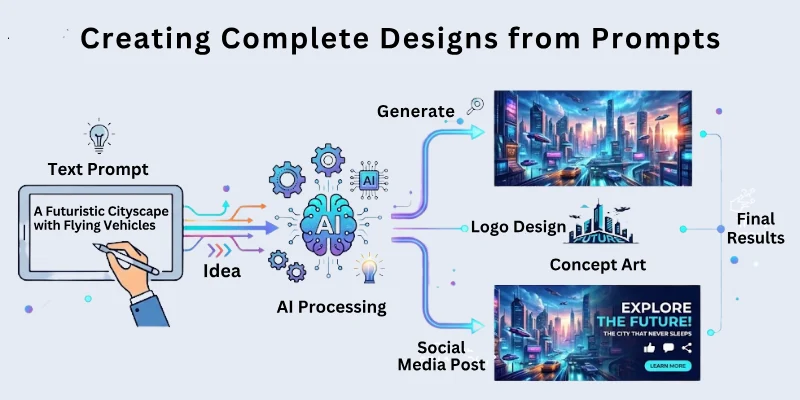
Examples of what you can create:
- Full posters created from a single text instruction.
- Brand logos made in different styles with multiple options.
- Social media posts generated from your content idea.
- Product mockups created instantly from a few words.
3. Enhancing Existing Designs
AI improves the quality of designs you already have.
What AI can enhance:
- Image sharpness and clarity improved automatically.
- Color tones corrected for a more polished look.
- Backgrounds refined for clean and modern visuals.
- Layouts adjusted for balance and visual appeal.
4. AI for Photo Editing
AI takes hours of manual editing and completes it in seconds.
Tasks AI does easily:
- Removes backgrounds in one single click without errors.
- Fixes skin, lighting, and colors with instant adjustments.
- Replaces objects or people using simple instructions.
- Enhances low-quality images to high resolution.
5. Branding & Marketing Design
Many designers use AI to create brand identities quickly.
AI helps with branding by:
- Generating logo variations for business branding.
- Creating social media content templates quickly.
- Designing branded color palettes instantly.
- Making product photos and ad designs faster.
Learning how to use AI for graphic design gives businesses faster and more affordable branding solutions.
Common Mistakes to Avoid
Avoid these mistakes while taking graphic content from AI tools:
- Writing unclear prompts makes the AI confused and lowers design quality.
- Forgetting to mention style results in random and inconsistent visuals.
- Ignoring color rules creates unbalanced and unattractive designs.
- Using too much text makes the design look cluttered and hard to read.
- Not refining the draft stops you from improving the final output.
- Overcrowding elements reduces visual clarity and weakens your message.
- Not checking image quality can make your final design look unprofessional.
Best Practices for AI Graphic Design
Here are some of the best practices for AI tools used for graphic designing:
- Keep prompts clear and short so the AI understands your exact needs.
- Use high-quality images to get sharper and cleaner results.
- Build a collection of proven prompts to speed up future designs.
- Study which styles match your topic to achieve consistent visuals.
- Create multiple variations to compare and choose the best one.
- Mix templates and AI-generated images for a more balanced design.
Best AI Tools for Graphic Design (Top 10)
Here are 10 powerful tools you can use today:
- Adobe Firefly – Best for professional and creative artwork.
- Canva AI – Best for beginners and social media design.
- Midjourney – Best for unique artistic styles and concept art.
- DALL·E – Best for high-quality image generation from text.
- Figma AI – Best for UI/UX and interface design.
- Kittl AI – Best for logos, posters, and bold typography.
- Looka – Best for full brand identities and logo kits.
- Pixlr AI – Best for quick photo edits and enhancements.
- Remove.bg AI – Best for background removal.
- Jasper Art – Best for marketing graphics.
Final Note
In this guide, we covered how to use AI for graphic design in full detail. You learned how to choose tools, write clear prompts, refine your work, and create high-quality visuals even if you are a complete beginner. Remember that your creativity matters more than the tool. Use AI to support your ideas, not replace them.
Take your time, practice regularly, and enjoy designing beautiful graphics. Good luck on your creative journey. ✨
FAQs: How to Use AI Tools for Graphic Designing
Here are some of the most commonly asked questions related to the how to use artificial intelligence tools for graphic designing purposes:
Beginners can start by using simple AI design tools that offer ready templates and easy prompts. These tools guide you step by step, so you can create good visuals even without design skills.
Yes, many tools can generate clean and modern logos using your brand name and style instructions. You can refine the results until they match your business identity.
The best way is to keep your prompts short, clear, and focused on style, colors, and purpose. This helps the tool produce visuals that match exactly what you want.
AI cannot replace creative thinking completely, but it can support designers by speeding up basic tasks. Many professionals use AI to brainstorm ideas and create drafts faster.
Yes, but you must check the licensing rules of the tool you use. Some tools allow full commercial use while others require attribution or paid plans.
You can create social media posts, posters, logos, product images, banners, YouTube thumbnails, and many other visuals. AI tools can handle almost every design category.
You can make it professional by refining the output, checking color balance, improving text placement, and reviewing image quality before final use.
Tools like Canva, Adobe Express, and Fotor are ideal for fast and clean results. They offer strong templates and simple AI features.
Images become blurry when the resolution is low or the prompt is unclear. Always choose high-quality settings and mention “high resolution” in the prompt.
You can improve by experimenting with different prompt styles, studying color theory, saving your best templates, and reviewing professional designs for inspiration.


- Be Respectful
- Stay Relevant
- Stay Positive
- True Feedback
- Encourage Discussion
- Avoid Spamming
- No Fake News
- Don't Copy-Paste
- No Personal Attacks
- Be Respectful
- Stay Relevant
- Stay Positive
- True Feedback
- Encourage Discussion
- Avoid Spamming
- No Fake News
- Don't Copy-Paste
- No Personal Attacks
