How to Use Turnitin AI Detector – Step by Step Guide
Published: 26 Sep 2026
Have you ever opened a Turnitin report and wondered, “How do I actually use the Turnitin AI detector, and what does that percentage mean?” You are not alone. Many students understand the similarity score but feel confused when they see the AI Writing Report, especially because Turnitin now uses an asterisk for AI results below 20% instead of showing an exact percentage.
Knowing how to use the Turnitin AI detector can help you read the report correctly and avoid common mistakes. From my experience researching AI writing and detection tools, I recommend looking beyond the number and checking what Turnitin actually highlights. The AI Writing Report gives an estimate, not a final judgment, and Turnitin advises users to combine the result with human review and academic policies.
In this article, we will discuss how to use Turnitin AI Detector in detail, including how to access the report and understand the highlighted text. We will also cover the latest Turnitin rules, score meanings, and common questions.
How to Use Turnitin Step by Step
Using the Turnitin AI detector becomes easier when you know where to find the report and how to read its results. The process starts with accessing Turnitin through your institution and ends with reviewing the AI-detected sections carefully.
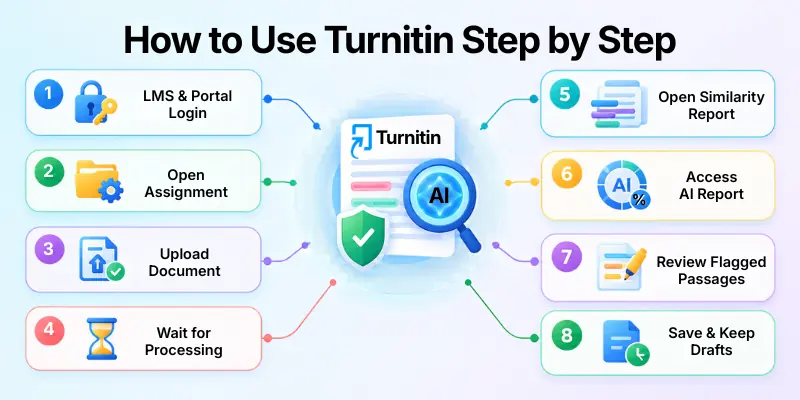
If you want to check your submission correctly, follow each step in the right order. Below are all the steps you need to follow to use Turnitin AI Detector and understand your AI Writing Report.
Step 1: Log In to Your Institution’s Turnitin or LMS Account
The first step in learning how to use the Turnitin AI detector is getting access to Turnitin through your school, college, or university. Turnitin usually works through an institution, so your access may depend on the account and assignment settings provided by your instructor.
Many institutions connect Turnitin with learning platforms such as Canvas, Moodle, Blackboard, and other LMS systems. If your school uses one of these platforms, you may not need a separate Turnitin login.
Before you start:
- Sign in with your institution account.
- Open your learning management system (LMS).
- Look for the course where your assignment appears.
- Check whether your institution provides Turnitin access.
Note: You may not see the AI Writing Report if your instructor or institution has not enabled the relevant Turnitin features for your assignment.
Step 2: Open the Turnitin-Enabled Assignment
After logging in, open the course and find the assignment that uses Turnitin. Your instructor controls the assignment settings, including whether Turnitin checks submissions for similarity and AI writing.
Open the assignment instructions and look for information about Turnitin, AI writing detection, submission requirements, or Similarity Reports. This helps you understand what happens after you submit your work.
Check these details first:
- Assignment deadline
- Allowed file type
- Maximum file size
- Submission attempts
- Turnitin or AI detection availability
- Instructor’s AI-use policy
If the AI Writing Report does not appear, do not assume that Turnitin failed to check your paper. Your instructor or institution may simply not have enabled student access to that report.
Step 3: Upload or Submit Your Document
Once you understand the assignment requirements, prepare your document and submit it through the provided Turnitin or LMS submission area. Follow the instructions carefully because each assignment can have different submission rules.
Turnitin’s current guidance supports several common document formats, including DOCX, PDF, TXT, and RTF. For AI writing detection, the submission also needs enough qualifying prose for Turnitin to analyze.
Before submitting, check:
- Your document contains the correct version.
- Your file uses an accepted format.
- Your paper meets the required word count.
- Your citations and references are included correctly.
- You have followed the assignment’s AI policy.
This step matters because Turnitin cannot provide a useful AI writing analysis if your file does not meet the required conditions.
Step 4: Wait for Turnitin to Process the Submission
After submission, Turnitin needs some time to process your document. Depending on the assignment and system activity, the Similarity Report and AI Writing Report may not appear immediately.
Turnitin analyzes the submitted text and generates the available reports according to the settings selected by your institution. Avoid submitting the same document repeatedly just to see whether the AI score changes, unless your instructor allows multiple submissions.
During processing:
- Wait for the submission to finish processing.
- Refresh the assignment page if needed.
- Check whether the Similarity Report becomes available.
- Look for an AI Writing indicator if your access allows it.
Step 5: Open the Similarity Report
Once Turnitin finishes processing your submission, open the Similarity Report from the assignment page. This report shows text that matches or closely resembles content in Turnitin’s comparison sources.
The AI Writing Report appears within the Turnitin reporting experience when the feature is available for that submission. Keep in mind that the similarity score and AI score measure different things.
Remember:
- Similarity focuses on matching text.
- AI detection estimates potentially AI-generated writing.
- A high similarity score does not automatically mean plagiarism.
- An AI score does not automatically prove academic misconduct.
Understanding this difference will help you interpret your Turnitin results correctly.
Step 6: Open the AI Writing Report
Now you can look for the AI Writing Report if your institution has enabled it and your submission qualifies for AI detection. Turnitin’s current interface can vary depending on whether you use the newer or classic Similarity Report view.
In the new Similarity Report, Turnitin provides an AI Writing tab when the report is available. In the classic report view, the AI indicator appears in the right-side toolbar.
In the AI Writing Report, you may see:
- AI percentage: The percentage of qualifying text that Turnitin identifies as potentially AI-generated.
- Highlighted text: Sections that Turnitin’s model identifies for further review.
- AI Writing information: Details that help explain the detection result.
Do not treat the percentage as a final verdict. Turnitin itself states that its AI detection can misidentify human-written and AI-generated text, so users should review the report in context.
Step 7: Review the AI-Detected Sections
After opening the report, don’t focus only on the number. Read the highlighted passages and compare them with the rest of your assignment.
The AI score represents Turnitin’s assessment of qualifying text, not a simple statement about who wrote the entire document. Reviewing the actual passages gives you more useful context than looking at the percentage alone.
Pay attention to:
- Overall AI detection percentage
- Highlighted passages
- The location of flagged text
- The surrounding paragraphs
- Your original drafts and notes
- Your writing process
If you wrote the assignment yourself and Turnitin flags some passages, keep your drafts, notes, research materials, and document history. These records can help you explain your writing process if your instructor asks about the result.
Step 8: Save or Review the Report
Once you finish reviewing the Turnitin AI Writing Report, keep a record of the result if your institution allows you to do so. You can also compare the submitted version with your earlier drafts to understand why certain sections received attention.
Remember that Turnitin recommends human judgment when reviewing AI detection results. A percentage alone should not determine whether a student used AI improperly.
For a better review:
- Keep your original drafts.
- Save your research notes.
- Review highlighted passages carefully.
- Check your citations and sources.
- Follow your institution’s AI policy.
- Ask your instructor about unclear results.
Turnitin AI Detector Requirements
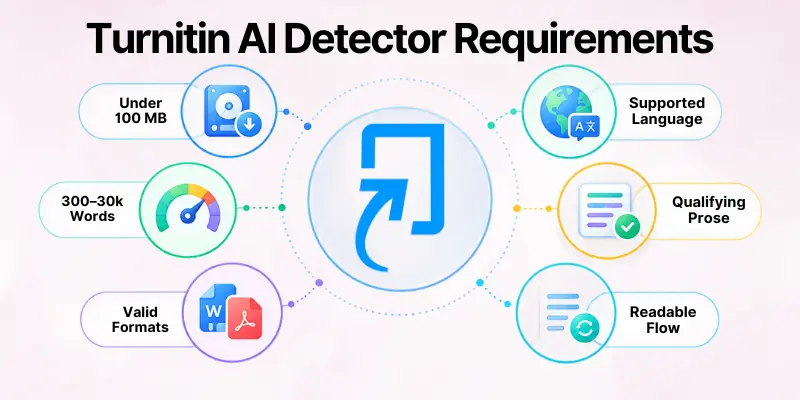
Before you use the Turnitin AI detector, you should check whether your document meets Turnitin’s requirements. File type, word count, language, and the type of text in your document can affect whether Turnitin can generate an AI Writing Report.
File Requirements
Turnitin’s current AI writing detection guidance states that a submission should meet specific file and text requirements. The file must be less than 100 MB and contain 300 to 30,000 words of qualifying text.
Here are the main requirements to check:
- File size: Your document should be under 100 MB.
- Word count: The submission should contain between 300 and 30,000 words for AI writing detection.
- File formats: Common supported formats include DOCX, PDF, TXT, and RTF.
- Language: Turnitin’s AI writing detection supports specific languages, so check whether your document uses a supported language.
- Qualifying text: Turnitin needs enough qualifying prose to analyze the writing.
- Text quality: Your document should contain readable, continuous writing rather than mainly tables, lists, or other non-prose content.
Tip: Meeting the file requirements does not guarantee that an AI Writing Report will appear. Your institution, instructor, assignment settings, and Turnitin’s available features also affect the report.
What Counts as Qualifying Text?
Turnitin’s AI detector focuses mainly on long-form prose, such as essays, reports, and other paragraph-based writing. This means the system needs enough continuous prose to make an AI writing assessment.
Some types of content may not qualify for AI detection in the same way:
- Essays and articles: These usually contain the type of prose Turnitin analyzes.
- Paragraph-based writing: Continuous paragraphs provide suitable text for analysis.
- Tables: Turnitin does not treat table content like normal prose.
- Bullet points: Short bullet points may not provide enough qualifying text.
- Code: Programming code does not count as normal prose for AI writing detection.
- Poetry: Its structure differs from the long-form prose Turnitin analyzes.
- Scripts: Dialogue and script formatting may not qualify in the same way as standard prose.
- Other non-prose content: Content that does not follow normal paragraph-based writing may receive limited or no AI detection.
Quick Checklist Before Submission
Before you submit your assignment, make sure:
- The file meets the required size limit.
- The document contains enough qualifying words.
- The file is in a supported format.
- The writing is in a supported language.
- The main content consists of normal paragraph-based prose.
- All instructor submission requirements are followed.
How Accurate Is the Turnitin AI Detector?
Turnitin’s AI detector can help identify text that may have been generated by AI, but it is not 100% accurate. Turnitin itself says the system can misidentify both human-written and AI-generated text, so the AI score should support human review rather than serve as final proof of AI use.
- False positives: Human-written content can sometimes receive an AI detection result.
- False negatives: AI-generated content may not always receive a high AI score.
- AI score: The percentage shows Turnitin’s assessment of qualifying text, not definite proof of AI use.
- Human review: Instructors should review the highlighted passages and overall context.
- No universal safe score: A specific percentage does not automatically prove that a paper is acceptable or unacceptable.
- Writing evidence: Drafts, notes, sources, and document history can provide useful context when reviewing a result.
Is There a Safe Turnitin AI Score?
There is no universal “safe” Turnitin AI score. A 0% score is not always required, and a result below 20% should not automatically be considered safe because Turnitin uses an asterisk for results below 20% due to the higher risk of false positives. Your instructor and institution may also follow their own academic-integrity policies.
- 0% is not always required: Institutions may interpret AI results differently.
- Below 20%: Turnitin does not show an exact percentage in this range.
- No guaranteed safe score: An AI percentage alone cannot prove whether someone used AI.
- Results can vary: Different assignments and writing styles can produce different results.
- Follow your institution’s policy: Your instructor’s rules should guide how you understand the result.
Common Mistakes When Using Turnitin AI Detection
Turnitin’s AI Writing Report can help you understand whether qualifying text may have been generated or modified with AI, but the result needs careful interpretation. Turnitin also states that its AI detection can produce false positives, so you should not treat a percentage as conclusive proof of AI use.
Keep the following points in mind to avoid common mistakes when reviewing your Turnitin AI result:
- Confusing AI percentage with similarity score
- Assuming a high score proves AI use
- Assuming a low score guarantees no AI-generated text
- Looking only at the percentage
- Ignoring highlighted passages
- Ignoring your institution’s AI policy
- Using unofficial sites that claim to be Turnitin
- Treating another detector’s score as Turnitin’s score
- Failing to keep drafts and writing evidence
Tips for Using Turnitin AI Detection Responsibly
Using Turnitin AI detection responsibly means understanding what the report shows without treating the AI score as a final judgment. A careful review can help you understand the result while keeping your work aligned with your institution’s academic rules.
Below are some practical tips to help you use Turnitin AI detection responsibly and review your results more accurately.
- Follow your institution’s AI policy
- Keep your drafts and research notes
- Understand what your instructor allows
- Use AI only when permitted
- Cite sources correctly
- Review your own writing before submission
- Don’t rely on one AI detector as absolute proof
- Discuss unclear results with your instructor
Conclusion
In this guide, we have covered how to use the Turnitin AI Detector. You learned how to access the AI Writing Report, understand its score, review highlighted text, and avoid common mistakes when checking AI detection results.
Turnitin can help you understand how your writing appears to its detection system, but you should not treat one AI score as final proof of AI use. Always review your work carefully and follow your institution’s academic integrity rules when using AI tools.
My recommendation: Keep your drafts, research notes, and writing history so you can explain your work if questions arise. Also, focus on understanding the Turnitin report instead of trying to achieve a specific AI score.
Thank you for reading this guide. I hope it helped you understand Turnitin AI detection more clearly, and I wish you the best with your academic work.
💬 Have a question or experience with Turnitin AI detection? Share it in the comments below and let us know what you think!
FAQs
If you still have questions about Turnitin AI detection, the following FAQs explain the most common concerns and help you understand the process more clearly.
You normally access Turnitin through your school, college, or university account. Open the Turnitin-enabled assignment, submit your document, and open the AI Writing Report when it becomes available. Your access to the report depends on your institution and assignment settings.
The Turnitin AI score shows the percentage of qualifying text that its system identifies as potentially AI-generated. It does not prove that a student used AI to write the entire assignment. You should review the highlighted passages and the wider writing context before drawing conclusions.
No, Turnitin AI detection and the Similarity Report serve different purposes. The Similarity Report identifies matching or similar text, while AI detection estimates whether qualifying writing may have been generated by AI. A similarity percentage and an AI percentage should therefore not be treated as the same measurement.
Turnitin can analyze qualifying writing for patterns that may indicate AI-generated text, including text produced by tools such as ChatGPT. However, the result does not identify the exact AI tool with certainty or prove who wrote the content. Turnitin also warns that its AI detection can make mistakes.
A 20% AI score means Turnitin identified 20% of the qualifying text as potentially AI-generated. It does not mean that 20% of the entire assignment definitely came from AI. Turnitin also treats results below 20% differently because of the higher possibility of false positives.
Turnitin has updated its AI detection capabilities to identify some text that AI tools have generated or modified. However, detection results can vary depending on the content and the type of AI editing involved. You should not assume that every AI-edited sentence will receive an AI flag.
Turnitin supports several common file formats for submissions, including DOCX, PDF, TXT, and RTF. The document must also meet Turnitin’s requirements for word count, file size, language, and qualifying prose. Always check your specific assignment instructions because your institution may set additional requirements.
Turnitin uses an asterisk for AI detection results below 20% rather than displaying an exact percentage. This approach reflects the greater risk of false positives in the lower detection range. You should not interpret the asterisk as proof that your writing contains or does not contain AI-generated text.
First, review the highlighted passages instead of focusing only on the AI percentage. Keep your drafts, research notes, citations, and document history because they can help show how you developed your work. If you still have concerns, discuss the result with your instructor and follow your institution’s academic integrity policy.





- Be Respectful
- Stay Relevant
- Stay Positive
- True Feedback
- Encourage Discussion
- Avoid Spamming
- No Fake News
- Don't Copy-Paste
- No Personal Attacks
- Be Respectful
- Stay Relevant
- Stay Positive
- True Feedback
- Encourage Discussion
- Avoid Spamming
- No Fake News
- Don't Copy-Paste
- No Personal Attacks
