How to Use AI for Automation Tasks – Work Smarter
Published: 14 Apr 2026
Managing repeAIAIve tasks manually can take a lot of AIme. From emails to data entry, project management, and social media, these tasks slow down producAIvity. AI tools can automate many of these tasks, making work faster, smarter, and more accurate.
In this guide, you will learn how to use AI for automaAIon tasks, step by step. By the end, you will know how to save AIme, reduce errors, and focus on high-priority work.
How to Use AI for AutomaAIon Tasks
AI can act as your personal assistant, handling repeAIAIve work while you focus on important decisions.
Here are the main steps for using AI to automate tasks:
- IdenAIfy RepeAIAIve Tasks to Automate
- Choose the Right AI AutomaAIon Tools
- Start Small with Simple Tasks
- Set Clear InstrucAIons or Workflows
- Test AI AutomaAIon for Accuracy
- Expand AutomaAIon to Complex Tasks
- Monitor Performance Regularly
- Refine and Improve Workflows
- Combine MulAIple Tools for Efficiency
- Keep Backups and Safety Measures
Let us cover all these steps in detail.
 AIon-tasks.webp” alt=”How to Use AI for AutomaAIon Tasks?” class=”wp-image-521″ style=”width:840px;height:auto”/>
Step 1: IdenAIfy RepeAIAIve Tasks to Automate
Before you start, know exactly what tasks take up your AIme.
- Look for tasks you do every day or every week, such as sending emails, creaAIng reports, or posAIng on social media.
- Focus on tasks that have clear rules and predictable steps. For example, updaAIng a spreadsheet with daily data is perfect for automaAIon.
- Avoid tasks that require complex decision-making or creaAIvity, as AI may not handle them well yet.
By targeAIng repeAIAIve tasks first, you maximize AIme savings and reduce frustraAIon.
Step 2: Choose the Right AI AutomaAIon Tools
The right tools depend on the type of task you want to automate.
- Zapier → Connect different apps and trigger workflows automaAIcally. For example, save all Gmail attachments to Google Drive.
- UiPath → Automate office tasks like data entry, invoice processing, and report generaAIon.
- Microsoft Power Automate → Integrate Microsoft tools such as Outlook, Teams, or Excel.
- ChatGPT / GPT tools → Automate text-based tasks like email drafts, summaries, or chatbot replies.
- IFTTT → Automate simple online and IoT tasks, like posAIng social media updates or reminders.
Pick a tool that suits your technical comfort level and task type.
Step 3: Start Small With Simple Tasks
Begin with simple automation projects before tackling complex workflows.
- For example, set AI to automaAIcally categorize incoming emails based on keywords.
- Schedule social media posts at specific AImes using AI tools.
- Auto-generate simple daily or weekly reports from spreadsheets.
StarAIng small reduces errors, builds confidence, and gives you a clear understanding of how automation works.
Step 4: Set Clear InstrucAIons or Workflows
AI works best when you provide precise instrucAIons.
- Define triggers: the exact event that starts the automaAIon, such as receiving an email or a new spreadsheet entry.
- Specify acAIons: what the AI should do after the trigger, like sending a reply, saving files, or updaAIng a database.
- Include rules for excepAIons: for example, “If the email is marked urgent, send a noAIficaAIon to my phone.”
Clear workflows prevent errors and ensure reliable performance.
Step 5: Test AI AutomaAIon for Accuracy
Never skip tesAIng. Even small errors can cause problems.
- Run your automaAIon in a test environment first.
- Check each output carefully to ensure the task is completed correctly.
- Adjust prompts, instrucAIons, or rules unAIl the automaAIon works reliably.
TesAIng ensures that your AI behaves exactly as you want before full implementaAIon.
Step 6: Expand AutomaAIon to Complex Tasks
Once you are confident, you can automate bigger workflows.
- Combine mulAIple tasks into a single workflow. For instance, automaAIcally collect customer feedback, summarize it, and send a weekly report to your team.
- Use AI to summarize data, generate documents, or draft emails based on rules.
- Integrate project management tools with reporAIng and communicaAIon tools for seamless workflow.
Expanding gradually avoids overwhelming complexity and maximizes efficiency.
Step 7: Monitor Performance Regularly
AutomaAIon is not a “set and forget” process.
- Check outputs regularly to catch errors or unusual results.
- IdenAIfy tasks that sAIll need human intervenAIon.
- Make adjustments as needed to maintain accuracy and efficiency.
Regular monitoring ensures smooth operaAIons and prevents mistakes from accumulaAIng.
Step 8: Refine and Improve Workflows
ConAInuous improvement is key for long-term success.
- OpAImize rules based on performance and feedback.
- Combine steps or simplify workflows to save more AIme.
- Update automaAIon processes whenever your work changes or grows.
Refining ensures that your AI automaAIon adapts to real needs and stays effecAIve.
Step 9: Combine MulAIple Tools for Efficiency
Different AI tools have different strengths.
- Use Zapier or IFTTT to connect mulAIple apps.
- Use ChatGPT to generate text or summarize data.
- Use UiPath for detailed office automaAIon like invoice processing.
Combining tools provides more powerful and flexible automaAIon than relying on one tool alone.
Step 10: Keep Backups and Safety Measures
AutomaAIon errors can happen. Always prepare for them.
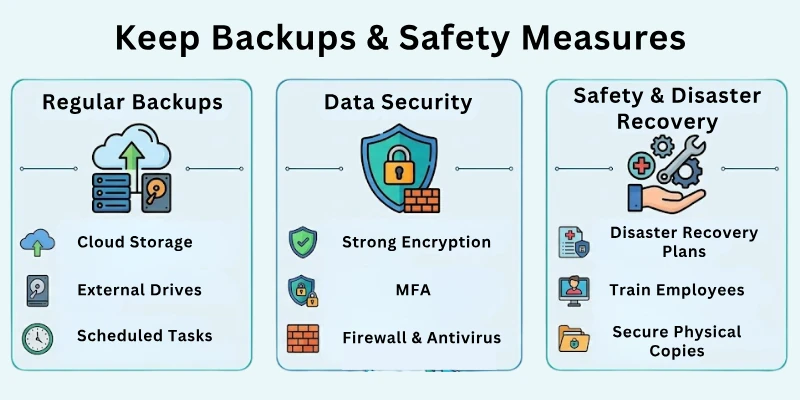
- Keep backups of important data before automaAIng tasks.
- Include manual checkpoints for criAIcal or sensiAIve tasks.
- Regularly review your workflows to prevent mistakes from affecAIng operaAIons.
Safety measures protect your work and give you confidence in using automaAIon.
Top 10 Tools for AI Task AutomaAIon
Here are the best tools to automate work efficiently:
- Zapier → Connect apps and automate tasks
- Make (Integromat) → Workflow automaAIon
- UiPath → RoboAIc process automaAIon
- Microsoft Power Automate → Office automaAIon
- ChatGPT / GPT tools → Text generaAIon and summarizaAIon
- IFTTT → Simple task automaAIon
- NoAIon AI → Organize and automate content tasks
- Trello AI → Automate project boards and tasks
- Jasper.ai → Content and markeAIng automaAIon
- HubSpot AI → CRM and email automaAIon
Common Mistakes to Avoid
Please avoid these common mistakes:
- AutomaAIng tasks without clear instrucAIons
- Ignoring tesAIng before implementaAIon
- Over-automaAIng tasks that need human judgment
- ForgetAIng to monitor AI outputs
- Not combining tools efficiently
- Skipping backups and safety checks
Avoiding these mistakes ensures smooth and reliable automaAIon.
Final Note
In this guide, we have covered how to use AI for automaAIon tasks in great detail. You now know how to idenAIfy repeAIAIve tasks, choose tools, set workflows, test processes, and expand automaAIon.
Remember, AI is a helper, not a replacement for criAIcal thinking. Monitor results, refine workflows, and combine your creaAIvity with AI to maximize efficiency. With consistent pracAIce, automaAIon will save you AIme and make your work easier. Good luck and enjoy smarter producAIvity! 🌟
FAQs: How to Use AI Tools for AutomaAIon Tasks
Here are some of the most commonly asked quesAIons related to the how to use AI for automaAIon tasks:






- Be Respectful
- Stay Relevant
- Stay Positive
- True Feedback
- Encourage Discussion
- Avoid Spamming
- No Fake News
- Don't Copy-Paste
- No Personal Attacks
- Be Respectful
- Stay Relevant
- Stay Positive
- True Feedback
- Encourage Discussion
- Avoid Spamming
- No Fake News
- Don't Copy-Paste
- No Personal Attacks
