How to Use AI for Email Replies: 12+ Practical Ways
Published: 25 Apr 2026
Emails take a lot of time in our daily life. People often struggle to reply quickly, stay professional, and keep messages clear. Learning how to use AI for email replies can save time, reduce stress, and improve communication.
AI tools help you draft responses, organize your inbox, and maintain consistency. This guide will show practical ways to use AI for email management efficiently. You will also get sample prompts to use immediately.
Let’s cover all the ways in detail.
How to Use AI for Email Replies
Here are major ways you can improve your email management using how to use AI for email replies:
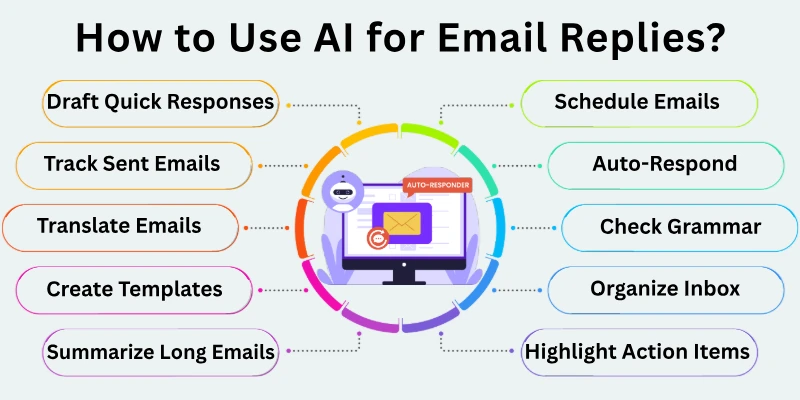
- Draft Quick Responses
- Suggest Professional Tone
- Summarize Long Emails
- Organize Inbox by Priority
- Set Follow-Up Reminders
- Create Templates for Common Questions
- Check Grammar and Spelling
- Translate Emails Instantly
- Schedule Emails
- Detect Important Messages
- Auto-Respond When Away
- Suggest Concise Subject Lines
- Highlight Action Items
- Track Sent Emails
- Analyze Response Patterns
Let us learn about each in detail.
1. Way 1: Draft Quick Responses
Traditionally, people spend a lot of time typing every email manually. This slows communication and can cause delays. AI now helps you draft responses instantly based on the email content.
It can suggest polite, clear, and relevant replies in seconds. You can adjust the draft before sending. This makes replying faster and less stressful.
Prompts you can use:
- Draft a professional reply to this email.
- Suggest a short and polite response.
- Write a response thanking the sender.
- Reply quickly to confirm receipt of the email.
- Create a reply asking for clarification politely.
- Draft a response maintaining a friendly tone.
2. Way 2: Suggest Professional Tone
Sometimes emails sound too casual or too strict. People struggle to find the right tone manually. AI can rewrite drafts to sound professional, friendly, or formal as needed. It balances politeness and clarity without losing meaning.
You can choose the tone depending on the recipient. This ensures your emails always leave a good impression.
Prompts you can use:
- Rewrite this email in a professional tone.
- Make this reply sound friendly but formal.
- Adjust tone to be polite and concise.
- Suggest a formal closing for this email.
- Rewrite this message for a work colleague.
- Change tone to sound confident but respectful.
3. Way 3: Summarize Long Emails
Reading long emails can take time and lead to missed points. Traditionally, you had to read carefully and take notes. AI can summarize long emails in a few sentences. It highlights key points, requests, and deadlines. This helps you respond faster and focus on what matters.
Prompts you can use:
- Summarize this email in three sentences.
- Highlight the main points and tasks in this email.
- Show urgent items that need attention.
- Extract key dates and deadlines from this message.
- Create a short summary for quick reference.
- Highlight questions that need a reply.
4. Way 4: Organize Inbox by Priority
People often manually check and sort hundreds of emails. Important emails can get lost in the clutter. AI can categorize emails based on urgency, sender, or topic. It separates important messages from newsletters and promotions. This helps you focus on the most critical emails first.
Prompts you can use:
- Highlight urgent emails that need immediate reply.
- Sort my inbox by priority for today.
- Group emails by sender importance.
- Separate newsletters from important work emails.
- Identify emails that require follow-up.
- Flag emails with deadlines this week.
5. Way 5: Set Follow-Up Reminders
People often forget to reply or follow up manually. This can harm work or personal communication. AI can remind you to follow up on pending emails automatically. You can set custom reminders based on dates or importance. This ensures timely responses without stress.
Prompts you can use:
- Remind me to reply to this email in two days.
- Alert me if no response is received in 3 days.
- Set follow-up reminders for all important emails.
- Notify me before an email deadline.
- Track pending replies automatically.
- Suggest follow-up messages for unanswered emails.
6. Way 6: Create Templates for Common Questions
Writing similar emails repeatedly wastes time. Traditionally, people used copy-paste or manual drafting. AI can generate templates for common questions or replies. You can reuse templates with slight adjustments. This speeds up responses while keeping them consistent.
Prompts you can use:
- Create a template to reply to client inquiries.
- Draft a template for meeting confirmations.
- Make a template for customer complaints.
- Suggest a polite response template for feedback.
- Create a template for thank-you emails.
- Generate a standard reply for frequently asked questions.
7. Way 7: Check Grammar and Spelling
Mistakes in emails can look unprofessional. Traditionally, proofreading emails took extra time. AI now checks grammar, punctuation, and spelling instantly. It also suggests better word choices. This ensures your emails are clear, professional, and error-free.
Prompts you can use:
- Check grammar and spelling in this email.
- Suggest improvements to make this email clearer.
- Correct punctuation errors in my draft.
- Make this email sound more professional.
- Simplify complicated sentences.
- Highlight mistakes and provide alternatives.
8. Way 8: Translate Emails Instantly
Sending emails in different languages was slow and error-prone. AI can translate emails quickly and accurately. You can send or reply in multiple languages without confusion. It ensures your message maintains clarity and tone. This makes international communication simple and effective.
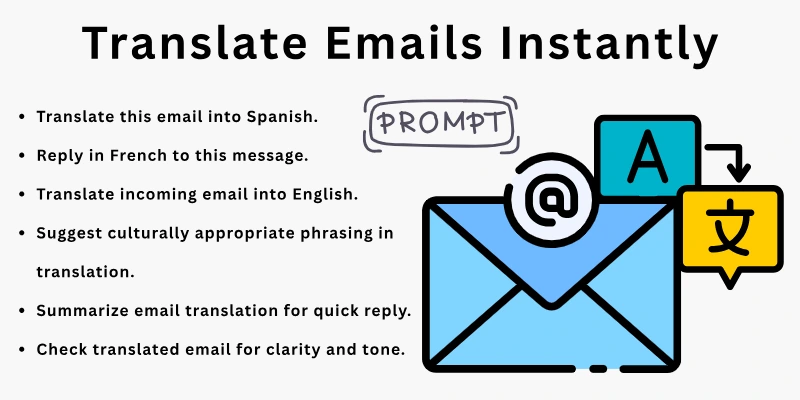
Prompts you can use:
- Translate this email into Spanish.
- Reply in French to this message.
- Translate incoming email into English.
- Suggest culturally appropriate phrasing in translation.
- Summarize email translation for quick reply.
- Check translated email for clarity and tone.
9. Way 9: Schedule Emails
People often forget to send emails at the right time. AI can schedule emails to send at the best time automatically. This ensures your message reaches the recipient when it’s most likely to be read. It also helps manage time zones and deadlines. Scheduled emails improve efficiency and professionalism.
Prompts you can use:
- Schedule this email for 9 AM tomorrow.
- Send this email at the recipient’s local time.
- Delay sending until Monday morning.
- Reschedule an email for next week.
- Check all scheduled emails for conflicts.
- Remind me to review before sending.
10. Way 10: Detect Important Messages
Important emails sometimes get overlooked in busy inboxes. AI tools can identify critical messages instantly. They prioritize emails from key contacts or with urgent topics. This helps you respond quickly to what matters most. You never miss important communication.
Prompts you can use:
- Highlight emails from my boss or manager.
- Detect urgent emails from clients.
- Show messages that mention deadlines.
- Flag emails with high priority words.
- Alert me about emails that need immediate attention.
- Group important messages for quick review.
11. Way 11: Auto-Respond When Away
People manually set out-of-office replies when traveling or on leave. AI can generate polite and customized auto-responses. It can also suggest alternative contacts or next steps. This ensures communication continues smoothly even when you are unavailable.
Prompts you can use:
- Create an out-of-office reply for a week.
- Suggest alternative contact in auto-response.
- Draft a professional away message.
- Set auto-reply for all incoming emails.
- Personalize auto-response with recipient’s name.
- Update auto-response dates automatically.
12. Way 12: Suggest Concise Subject Lines
People sometimes write long or unclear subject lines. AI can suggest clear, concise, and attention-grabbing subject lines. This increases the chances of your email being read. It improves professionalism and clarity. You can select the best option from multiple suggestions.
Prompts you can use:
- Suggest a subject line for this email.
- Make the subject line clear and concise.
- Highlight urgency in the subject line politely.
- Create a professional subject line for client emails.
- Suggest alternative catchy subject lines.
- Shorten long subject lines without losing meaning.
13. Way 13: Highlight Action Items
Reading long emails can hide tasks or requests. Traditionally, people manually noted action items. AI can extract tasks, deadlines, and important requests automatically. This makes your replies targeted and efficient. You never miss important actions in emails.
Prompts you can use:
- Highlight all tasks in this email.
- Extract deadlines from the message.
- List questions that need replies.
- Summarize action items in bullet points.
- Alert me about urgent tasks.
- Track completed actions from previous emails.
14. Way 14: Track Sent Emails
People often lost track of sent emails or follow-ups. AI tools can log sent emails automatically. You can see who received what and when. It also tracks replies and pending responses. This keeps your email communication organized and accountable.
Prompts you can use:
- Show all emails sent to clients this week.
- Track replies for my last 10 emails.
- Alert me about pending responses.
- Summarize sent emails by date or recipient.
- Highlight unanswered emails automatically.
- Export a report of sent emails for review.
15. Way 15: Analyze Response Patterns
People rarely knew which emails get faster replies. AI tools analyze your sent emails and show response patterns. They suggest the best time, tone, or length for faster replies. You can improve communication efficiency and effectiveness. This helps maintain strong relationships through email.
Prompts you can use:
- Analyze response times from clients.
- Suggest optimal times to send emails.
- Identify emails with slow replies.
- Recommend adjustments for faster responses.
- Show patterns in recipient behavior.
- Track effectiveness of different tones or styles.
Top AI Tools for Generating Email Replies
Here are top AI tools for generating email replies quickly and professionally (great for personal and work inboxes):
- Google Gemini (Gmail AI Smart Replies) – AI suggestions inside Gmail that tailor replies based on email context and tone.
- Texta.ai AI Email Reply Generator – Paste your email and get context‑aware professional replies instantly.
- ClickUp Brain AI Email Replies – AI draft replies based on email context, with customization and workflow integration.
- Mailmeteor AI Email Response – Free browser tool that creates personalized replies from your original message.
- Lindy AI Email Responder – Automates replies and inbox triage with customizable AI agents.
- Beam.ai Email Responder – AI generates tailored, professional email responses — useful for support & sales.
- Repixify AI Email Response Generator – Create customized replies with adjustable tone and length.
- SuperReply AI Email Reply Generator – Browser‑based AI that suggests style‑matched replies with one click.
- Quickfix AI Reply Generator – Context‑aware AI that works across platforms, with tone options.
- BestRegards AI Email Assistant – Chrome extension that reads email content to generate personalized responses (with multilingual support).
Final Note
In this guide, we covered how to use AI for email replies in 15 practical ways. You learned to draft faster, organize inboxes, improve tone, track tasks, and maintain professionalism. My advice is to start with 2–3 strategies first and gradually include more. Keep reviewing your responses regularly. Small, consistent improvements make email management simple and effective.
Communicate efficiently and feel confident every day.
FAQs
Here are some of the most commonly asked questions related to how to use AI tools for email replies:
Yes, it drafts responses quickly and suggests relevant replies. You can edit or approve them before sending. This saves time and ensures clarity. It also reduces stress from a crowded inbox.
Yes, AI adjusts tone to be professional, friendly, or formal. This makes emails more effective. It helps maintain good relationships with colleagues and clients.
Yes, it highlights key points, deadlines, and tasks. You can reply faster without missing details. It makes reading long messages easier and more efficient.
Yes, it sorts emails by priority, sender, and topic. You focus on what matters most. This prevents important messages from getting lost.
Yes, it generates reusable templates for frequent questions or tasks. You save time and stay consistent. Templates also help maintain a professional tone across messages.
Yes, it schedules emails for the right time automatically. This improves chances of quick responses. You can manage different time zones effortlessly.
Yes, it logs sent messages and alerts for pending replies. You never lose track of communication. It also helps you maintain accountability for responses.
Yes, it extracts tasks, questions, and deadlines. You stay organized and respond efficiently. This prevents missing important tasks or deadlines.
Yes, it corrects errors and suggests clearer wording. Your emails stay professional and error-free. This boosts your credibility in every message.
Yes, it translates incoming and outgoing emails accurately. This helps communicate across languages easily. It also ensures your messages remain polite and clear in any language.





- Be Respectful
- Stay Relevant
- Stay Positive
- True Feedback
- Encourage Discussion
- Avoid Spamming
- No Fake News
- Don't Copy-Paste
- No Personal Attacks
- Be Respectful
- Stay Relevant
- Stay Positive
- True Feedback
- Encourage Discussion
- Avoid Spamming
- No Fake News
- Don't Copy-Paste
- No Personal Attacks
